
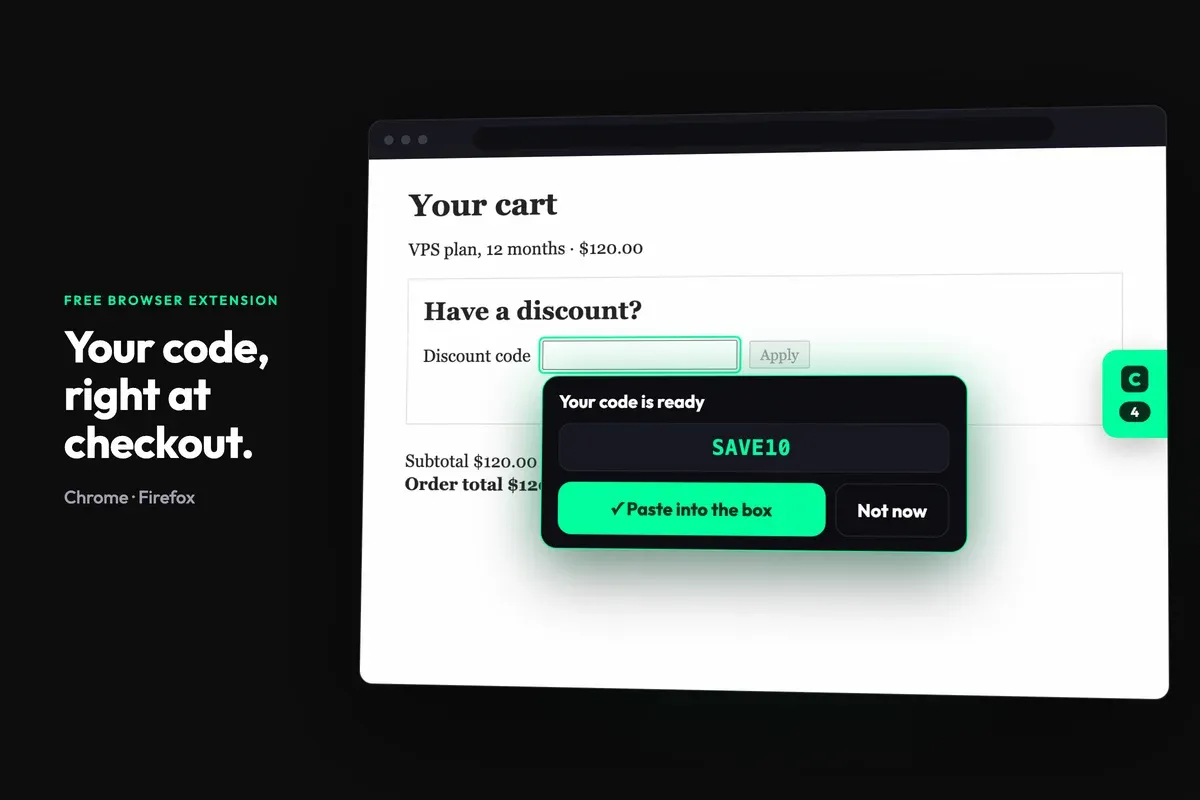
CouponSwift now has a free browser extension for Chrome and Firefox. It does one job: when you are on the website of a store we list, it shows you the coupon codes and deals we have for that store, right there on the page, and helps you put a code into the checkout's discount box.
Most coupon extensions are built for clothes, electronics and big retail. Ours comes from a site that lists software and online services, so the stores it recognises are the ones you buy from when you build or run something online: web hosting and VPS providers, VPN services, proxy providers, domain registrars, AI tools, game-server hosting and SaaS products.
Add to Chrome · Add to Firefox
What the coupon extension does
It recognises the store. Open a supported store and a small CouponSwift tab appears on the edge of the page, with the number of offers we list for that store. The toolbar icon shows the same number.
Every code is in plain sight. Click the toolbar icon (or the edge tab) to open the panel. Codes are listed as text, not hidden behind "Show code" buttons. Click a code and it is copied.
It helps at checkout. On cart and checkout pages the panel opens by itself, and a Paste button appears next to the store's discount-code box. One click enters the code and presses Apply for you.
You see how each code has worked. Every code shows how well it has worked for other shoppers, and you can tell us whether it worked for you.
It stays out of the way. You can hide CouponSwift for 30 minutes, always on a given site, or everywhere.
On pages that are not supported stores, nothing appears on the page; clicking the toolbar icon simply opens couponswift.com.
Which sites it works on
The extension knows the stores listed on CouponSwift, and the list is refreshed every day. In practice that means the sites in these categories:
Web hosting, VPS hosting, cloud hosting and dedicated servers
VPN services and proxy providers, including residential proxies
AI tools, from writing and image tools to video and voice
If a store is not on the list, the extension shows nothing there. You can browse every category we cover on the categories page.
How to install it on Chrome
Open the CouponSwift page on the Chrome Web Store. The extension is called CouponSwift: Verified Coupon Codes & Deals.
Click Add to Chrome, then Add extension in the box that Chrome shows.
Click the puzzle-piece icon in Chrome's toolbar and pin CouponSwift, so the icon and its offer count stay visible.
Open the site of a store you are about to buy from. If we list it, the CouponSwift tab appears on the edge of the page.
Browsers built on Chrome's engine that install extensions from the Chrome Web Store, such as Brave and Vivaldi, use the same listing.
How to install it on Firefox
Open the CouponSwift page on Firefox Add-ons.
Click Add to Firefox and confirm with Add.
CouponSwift's settings page opens in a new tab. Press Allow access and accept Firefox's prompt. Firefox keeps website access switched off for new add-ons, and CouponSwift needs it to read the address of the tab you are on and check it against the store list. Until you allow it, the add-on does nothing (the toolbar icon shows a "!" and opens that page).
Pin the icon from the extensions menu if you want the offer count always in view.
The Firefox version is for Firefox on desktop.
How it works on a store's site
Say you are about to buy a hosting plan. You open the provider's site and the CouponSwift tab appears on the right edge with the number of offers. You pick a plan and go to the cart:
On the cart or checkout page the panel opens by itself and lists the codes and deals for that store.
Read what each offer is for. Many software and hosting codes apply only to certain plans or billing periods, so check the description before you copy.
Click the code you want. It is copied.
Press Paste next to the discount-code box. The extension enters the code and clicks Apply.
Check the total the store shows. If the code was accepted, finish your order; if not, try the next one. Then tell us with Worked or Didn't work, which helps the next shopper.
Some offers are deals rather than codes: there is nothing to paste, and the discount shows on the store's own pricing.
Privacy and permissions, in plain words
A coupon extension sits in your browser, so here is exactly what ours does and does not do.
Store detection happens on your device. The extension downloads the list of supported stores once a day and compares the site you are on with it, inside your browser. Your browsing history is not sent to us, and we are never contacted about pages that are not supported stores.
What is sent, and only on supported stores: which store you are on, the page address without anything after the "?" or "#", the text of buttons you click (to recognise cart and checkout pages), shopping steps such as "code copied" or "order placed", and your Worked / Didn't work answers. When you apply a code, a short snippet of the area around the discount-code box is sent with the code you tried.
Personal data is removed first. Before that snippet leaves your device, names, email addresses, phone numbers, postal addresses, card and bank numbers are stripped out. If the cleaning cannot be completed, nothing is sent.
No account, no tracking SDKs. The extension uses an anonymous install id, contains no analytics or advertising SDKs, does not read your passwords or payment details, and does not run code downloaded from the internet. We do not sell your data or use it for advertising.
Permissions. It asks for access to websites (to recognise supported stores from the tab address and show the panel there) and for storage (your settings and the store list). It does not ask for your tabs list, cookies or downloads.
On Firefox you choose more. Website access is granted only when you press Allow access, and "Usage data" can be switched off in the settings or in Firefox's Permissions: the shopping steps and votes are then not sent, and everything else keeps working.
The full details are in the extension privacy policy.
Frequently asked questions
Is the CouponSwift extension free?
Yes. It is free to install on Chrome and Firefox, and there is no account to create. You install it from the official Chrome Web Store and Firefox Add-ons listings.
Does it apply codes automatically?
Not on its own. You choose the code: one click copies it, and the Paste button next to the store's discount box enters it and presses Apply. You decide which code to try and you see the store's result before you pay.
Why doesn't anything show on a site I'm visiting?
The extension only appears on stores listed on CouponSwift. On other sites it stays hidden, and the toolbar icon opens couponswift.com instead. On Firefox, also check that you pressed Allow access after installing, and that you have not hidden CouponSwift on that site.
Will it work on Edge, Opera or Safari?
Right now it is available for Chrome and Firefox. Browsers that install extensions from the Chrome Web Store, such as Brave and Vivaldi, can use the Chrome version.
Does it see what I do on other websites?
No. The store list is checked on your device, your browsing history is not sent to us, and pages that are not supported stores are never reported.
Can I turn it off on a site?
Yes. From the panel you can hide CouponSwift for 30 minutes, always on that site, or everywhere.
Get the extension
Next time you buy hosting, a VPN, proxies or an AI subscription, let the codes come to the checkout instead of searching for them in another tab.
Add CouponSwift to Chrome · Add CouponSwift to Firefox
Prefer not to install anything? Every store's offers are also on its CouponSwift page; start from the categories.