Ocoya Coupon & Promo Codes
8 offers listed
Active Ocoya coupon codes
FREE
Receive a special free gift with your entire purchase when you shop at Ocoya today using this offer.
20%OFF
Apply this Ocoya coupon to receive 20% off storewide savings, exclusively for new customers only during this promotion.
Expired Offers (May still work)
About Ocoya & Latest Deals
Get the latest Ocoya coupons, promo codes, and deals.
Learn more about Ocoya and their latest offers.
How to use Ocoya Discount Codes?
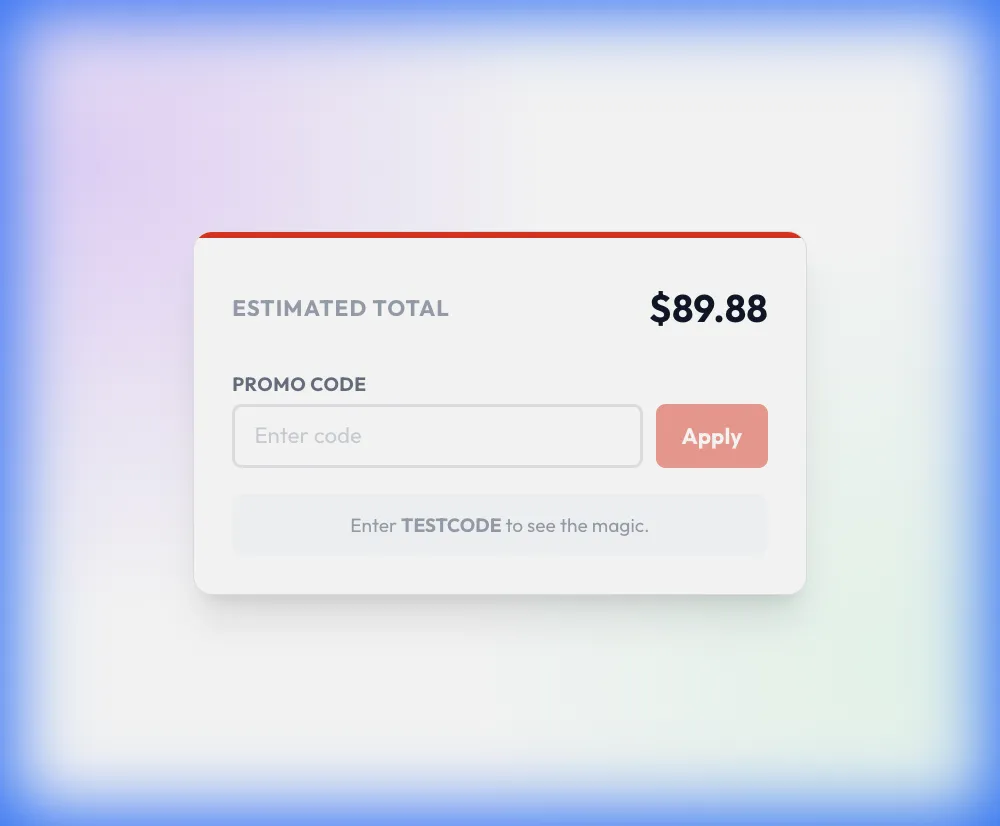
Copy an Ocoya coupon or promo code, then paste it in the promo field at checkout.
- Choose a coupon
Grab the Ocoya offer that works best for you. It's listed above.
- Reveal the code
Hit "Get Code" or "Get Deal" depending on the offer type. Popup opens. Click the copy icon inside—code goes to your clipboard.
- Apply at checkout
Now head over to Ocoya's site. Pick your Social Scheduler plan. Checkout page has a "Promo Code" field. Paste what you copied there.
Ocoya Discount FAQs
Ocoya offers two months free with yearly billing on Starter, Team and Agency. The annual term costs the equivalent of ten monthly payments for a full year of service. Starter includes one user and five social profiles, Team includes five users and twenty profiles, and Agency includes twenty users and one hundred profiles. Those limits help determine which annual offer fits the account you intend to buy. Each plan also includes a monthly AI credit allowance, with credits refreshing every month even on yearly billing. The billing choice therefore changes the subscription term rather than turning the credits into a single annual allocation. The pricing selector is labelled Yearly (2 months free).
Ocoya lets subscribers change plans through its billing settings. The amount due depends on your position in the current billing period and whether the change also switches the billing interval. Open the account menu, select Billing, and choose monthly or yearly before selecting the new plan. The plan button reads Upgrade to, Downgrade to or Switch to according to the move available for your account. Stripe displays the exact charge before confirmation, and nothing is charged until you confirm. The new limits take effect when the payment completes. For a change of interval or seat quantity within an existing subscription, the current plan's Manage subscription button opens Stripe's subscription screen.
Ocoya does not offer a money-back guarantee. Sales are final under its terms, with refunds available only on certain occasions following Ocoya's assessment. A discounted purchase should therefore be treated as a subscription commitment rather than a refundable evaluation period. Cancelling a paid subscription stops future payments while access continues until the paid period ends; cancellation itself does not refund that period. Ocoya offers a seven-day trial before the paid subscription, so the opportunity to evaluate the service comes before that charge. Questions about the terms can be sent to support@ocoya.com. For an exceptional refund request, that is the contact address listed in Ocoya's terms.
You can cancel an Ocoya subscription at any time. Cancellation stops future payments, while a paid subscription remains accessible until the end of its paid period. Open the account menu, select Billing and choose Unsubscribe on the current plan card. Ocoya then offers a call; Continue cancelling takes you onward to confirmation in Stripe. Once the paid period finishes, the account moves to free-plan limits of one brand and one user, without connected social profiles or monthly credits. Posts, brands and media remain stored, but scheduled posts stop publishing when the channels become unusable. Export or reschedule time-sensitive posts before that period ends, and complete the cancellation confirmation in Stripe.
You can add a tax ID through Ocoya's Stripe billing portal. Whether VAT applies depends on your country and business status, and holding a tax ID alone does not determine the treatment. Open Billing from the avatar menu and select Payment & invoices on the current plan card. In Stripe's billing information, enter the company name and address, choose the appropriate tax ID type, and enter the number in your country's format. You can hold more than one ID for registrations in different countries. Added details appear on future invoices because an issued invoice is fixed. For an EU VAT number, include its country prefix; Stripe checks both the format and whether the number is active.
Ocoya's current subscriptions include a monthly AI credit allowance. Starter provides 300 credits, Team provides 1,500, and Agency provides 5,000, so the plan attached to your discounted purchase determines the allowance. Generating a caption costs one credit, and generating an image costs one credit per image. A post containing a caption and one generated image therefore uses two credits. Credits refill monthly on both monthly and yearly subscriptions, and unused credits do not roll over. The balance belongs to the account owner and is shared across that owner's brands. To monitor the allowance included with your purchase, the remaining balance appears under Credits left at the bottom of the left sidebar.
You can update your subscription card through Ocoya's Stripe billing portal. Only Owners and Admins can manage billing, so the change needs to come from an account with one of those roles. Open the avatar menu at the top of the sidebar, select Billing, then select Payment & invoices on your current plan. In Stripe, add the replacement card under payment methods and make it the default; the old card can then be removed. Ocoya keeps payment details in Stripe rather than storing your card itself. A failed charge can suspend the subscription until the outstanding payment is settled. Add the replacement card before the renewal date shown for your subscription.
Ocoya provides live chat and email support for billing questions. Live chat is intended for urgent or interactive issues, including a charge you do not recognise, while email suits billing queries that need attachments or a written record. Select Support at the bottom of the left sidebar to open the support options. The dialog offers Email support, Live chat support and Help center. Email support copies the address so you can write from your own email account, while Live chat support opens the chat widget. Describe the amount or behaviour you expected and what actually happened. For a charge dated after a completed cancellation, Ocoya specifically asks you to contact support with the invoice number.
Ocoya's seven-day trial converts to a paid subscription unless you cancel before it ends. Your card is charged for the selected plan, while brands, channels, posts and schedules continue. Eligible plan cards display Start 7-day free trial, and the checkout summary states No charge today when starting your trial. Card details are required because the trial converts into a subscription. During the trial you receive the selected plan's features, channel and member limits, and monthly credits. Cancelling during the trial ends it immediately and moves the account to free-plan limits rather than preserving the remaining trial days. The renewal date in Settings, Billing is the charging date and the deadline for cancelling without a charge.
Ocoya's yearly offer is selected with the billing-period toggle above its plan cards. This sets the annual option before you choose Starter, Team or Agency. On the public pricing page, the options are Monthly and Yearly (2 months free), and each plan has a Start free trial button. Existing account holders can reach the plan cards from the avatar menu at the top of the sidebar by selecting Billing. Only Owners and Admins can access that billing area. The yearly option charges for ten months of service across a twelve-month subscription term. In the account's Billing screen, the cards sit below the current plan, with the billing-period toggle above them.
Yes. An Ocoya coupon and a promo code are the same thing: paste the code in the promo field at checkout before you pay.


