Used
OneStream Live Coupon & Promo Codes
3 offers listed
Active OneStream Live coupon codes
About OneStream Live & Latest Deals
OneStream Live sells live streaming software that multistreams to 45+ social media platforms, with a Free plan and yearly billing labeled save 20%.
Savings opportunities available through OneStream Live coupon codes
Live streaming is what this brand sells, and the offers on this page cut what you pay for it. OneStream Live is a cloud-based live video streaming app to schedule and live stream pre-recorded videos and real-time streams to 45+ social media platforms. Plans start with a Free tier and move up through Basic, Standard, Professional and Enterprise. Yearly billing carries the label "Pay yearly save 20%".
Service categories frequently on promotion
The paid plans are where a price can drop. Basic has 5 Multistreaming Destinations, Standard 10, Professional 30 and Enterprise 50. The Free plan costs $0 and is available indefinitely, so a coupon matters only from Basic upward.
Services usually excluded from promo codes
A discount lasts only while the subscription is active. Upgrading, downgrading or canceling removes all discounts and lifetime benefits on that subscription, unless OneStream Live decides otherwise. Reactivating or moving to another plan does not bring the same discount back automatically.
Impact of billing cycle on promotional price
Billing runs monthly or yearly, and each paid plan card repeats "save 20% / month". A subscription must be canceled before it renews to avoid the next fee. A pause of 1, 2 or 3 months starts at the end of the current billing cycle, not immediately.
Promo codes vs. automatically applied offers
The terms cover special lifetime deals and discounts from OneStream Live, plus referral-based benefits that rely on cookies. A visitor who declines cookies can still complete a purchase. Affiliates cannot use their own referral link to get a discount: self-referrals are prohibited.
Accessing active codes for OneStream Live
Purchases start at My Subscription, under your profile avatar. Choose the plan, select a payment method, add the card details and click Complete Payment. Decide the plan and the monthly or yearly period first, because a later plan change ends the discount.
How to use OneStream Live Discount Codes?
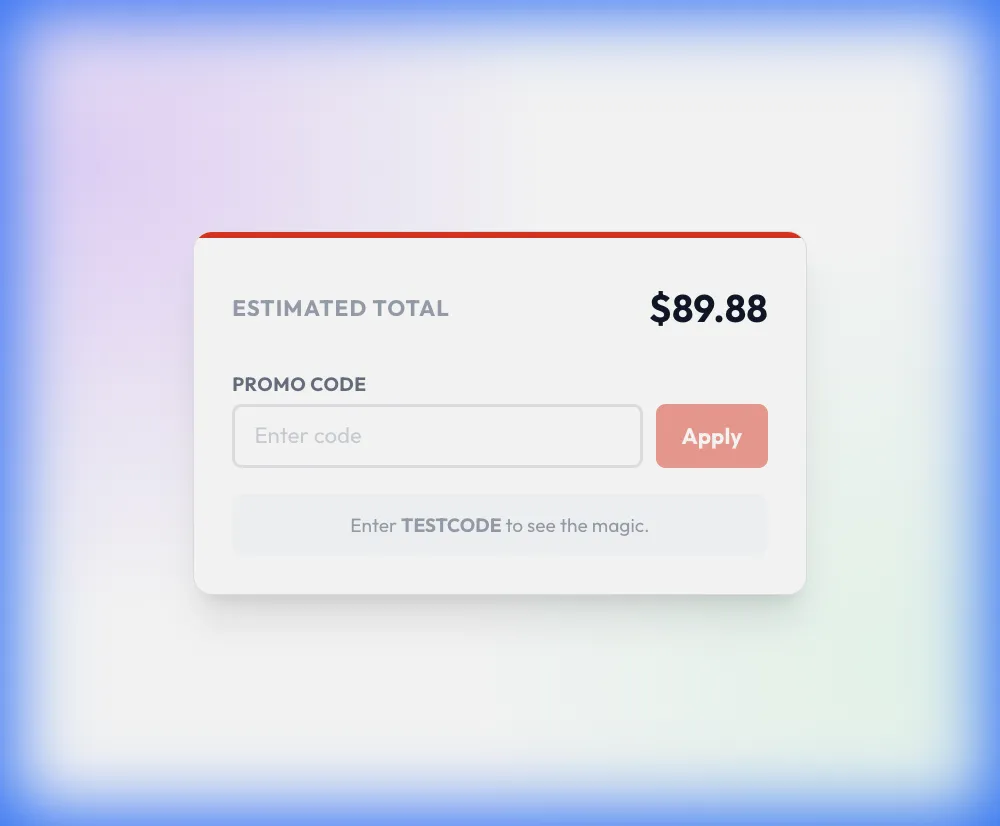
Copy an OneStream Live coupon or promo code, then paste it in the promo field at checkout.
- Choose a coupon
Grab the OneStream Live offer that works best for you. It's listed above.
- Reveal the code
Hit "Get Code" or "Get Deal" depending on the offer type. Popup opens. Click the copy icon inside—code goes to your clipboard.
- Apply at checkout
Now head over to OneStream Live's site. Pick your Multistreaming plan. Checkout page has a "Promo Code" field. Paste what you copied there.
OneStream Live Discount FAQs
Can I add extras to a discounted OneStream Live plan?
Yes, add-ons sit on top of the plan. They can only be purchased on top of an existing subscription and can be purchased or canceled at any time. Extra Destinations cost $10/month for 5 more destinations, and 24-Hours Streams cost $30/month for a 24-hour YouTube stream. Add-ons give extra capacity on top of your current paid plan, so you can enjoy additional features without upgrading. Plan capacity differs by tier: Basic includes 5 GB Storage and 0.5 TB Monthly Bandwidth, Standard 20 GB Storage and 1.5 TB Monthly Bandwidth. The terms separately say that upgrading or downgrading a subscription removes the discounts attached to it.
What are the steps to buy a OneStream Live plan with a discount?
Purchases run through the account. Click your profile avatar in the top-right corner, select My Subscription from the dropdown menu and choose the plan you want to purchase. Then select your preferred payment method, add the required card details and click Complete Payment to confirm. Decide the plan and the monthly or yearly billing period before you start, because the plan and period decide the price on the pricing page: yearly billing is labeled save 20%. An existing subscriber upgrades in a similar way: choose the plan you want to upgrade to, select your payment method and click Complete Payment.
Does a OneStream Live partner link change my discount?
It can matter. Attribution of certain discounts, promotions or referral-based benefits may depend on cookies or similar technologies that identify the source of a visit. If cookies are not enabled or are declined, purchases may not be attributed to a referring partner, and related referral benefits may not apply. Declined cookies do not affect your ability to access the Services or complete a purchase. The affiliate program also prohibits self-referrals: its stated aim is to spread the word about OneStream Live, not to get discounts. Special discounts from OneStream Live stay valid only while your subscription is active. Self-referrals are therefore not a route to a lower price.
Can I pause a discounted OneStream Live plan instead of cancelling it?
A pause exists. Open Account Settings, go to the Billing tab, click Manage in the Subscription Plan section, choose Pause Subscription and pick a pause of 1, 2 or 3 months. The subscription pauses at the end of your current billing cycle, not immediately. Cancelling works differently: you must cancel before the plan renews for the next billing period, monthly or yearly, to avoid the next subscription fee, and after the cycle ends the account is moved back to the free plan. The terms tie discounts to an active subscription and say canceling loses them, and the pause lasts 1, 2 or 3 months.
Which OneStream Live plans can I buy with a coupon?
A coupon matters on the paid tiers: Basic, Standard, Professional and Enterprise. Free accounts cost $0 and stay free indefinitely, so nothing is left to cut there. Basic offers 5 Multistreaming Destinations at 720p with 1 Team Seat. Standard offers 10 destinations at 1080p with 4 Team Seats. Professional offers 30 destinations and 6 Team Seats. Enterprise offers 50 destinations and 10 Team Seat. Storage grows from 5 GB on Basic to 150 GB on Enterprise. Standard is described as a broad mix of features, value and affordability, and Professional as best for small businesses or creators with a team. Pick the tier first, because a plan change after purchase ends any discount attached to the subscription.
Can I get a refund on a OneStream Live plan bought with a coupon?
No, refunds are not provided for any subscription. OneStream Live does not give credit, refunds or prorated billing for a subscription cancelled in the middle of a billing period, and access continues to the end of that cycle. Refunds are considered only when the service fails to work because of problems at the company's end, and each case is handled separately. A separate EU rule gives a statutory right to withdraw from a paid subscription within 14 days, but that right is lost once the service has commenced, for example when you start streaming, uploading content or connecting accounts. Free accounts with no payment obligation are not subject to these provisions.
Does OneStream Live have a free trial, or only a free plan, before I use a coupon?
A free plan, not a trial. OneStream Live offers a free plan that you can use indefinitely, and the home page pairs Start Free Streaming with No Credit Card Required. The free version has limits: it streams to only two platforms at a time, tops out at 720p and holds a maximum of 1 GB of uploaded videos and media. You can upgrade your pricing plan anytime. Free accounts with no payment obligation are also not subject to the 14-day withdrawal provisions. Because the free plan costs nothing, a coupon matters only once you move to Basic, Standard, Professional or Enterprise.
Can I get the same OneStream Live discount again after I cancel and resubscribe?
Not automatically. Reactivating or subscribing to another plan does not automatically entitle you to the same benefits or discounts again. Cancelling is possible at any time, but the cancellation takes effect at the end of the current billing period, and access to the paid features stays active until then. After that the account returns to the free plan, and you must cancel before the subscription renews for a subsequent billing period, monthly or yearly, to avoid the next subscription fee. To come back, open My Subscription, click Resubscribe, choose your payment method and click Resubscribe again to confirm. The one exception in the terms is that OneStream Live may decide otherwise.
How does yearly billing affect a OneStream Live promo code discount?
Yearly billing carries its own label: Pay yearly save 20%. Each paid plan card repeats save 20% / month. The comparison shows Free at $0 per year, Basic at $15 /month Billed as $144 per year, Standard at $39 /month Billed as $384 per year, Professional at $49 /month Billed as $468 per year and Enterprise at $139 /month Billed as $995 per year. Compare the percentage of any offer on this page with that 20% label before paying. A subscription also renews on its billing period, monthly or yearly, so cancel before the renewal date if you do not want the next fee.
Does a OneStream Live discount stay after I upgrade or downgrade?
No, not by default. A discount or lifetime deal from OneStream Live remains valid only as long as your subscription is active. If you upgrade or downgrade your existing subscription, or cancel it, you lose all discounts and lifetime benefits on that subscription, unless OneStream Live decides otherwise. The company also reserves the right to remove any discounts from your subscription at any time without prior notice or liability. Upgrading is a short process: open My Subscription, choose the plan you want to upgrade to, select your payment method and click Complete Payment. Start on the plan you actually need, because moving later ends the discount.
Does OneStream Live accept promo codes as well as coupons?
Yes. An OneStream Live coupon and a promo code are the same thing: paste the code in the promo field at checkout before you pay.
Scroll up for the current OneStream Live offers.


