Electronic signatures, document workflows and eSignature API plans.
Savings opportunities available through BoldSign coupon codes
BoldSign sells electronic signatures, and the offers on this page help cut the price of a paid plan. Essential is free for 25 envelopes a month. Need more sends? Growth starts at $5 per user per month with yearly billing as of October 2026. Choose the paid tier that fits your envelope count, then look for a BoldSign discount before upgrading.
Service categories frequently on promotion
Growth, Business and Premium are the BoldSign plans to price against the offers on this page. Growth includes 50 envelopes per month per user; Business lists unlimited envelopes. Premium includes unlimited users but 250 envelopes per month. Pay for the envelope allowance you need, not simply the biggest plan name.
Services usually excluded from promo codes
Add-ons have their own charges. BoldSign lists SMS and WhatsApp delivery, bulk sending and identity verification as pay-as-you-go items on eligible plans. The Essential plan already costs $0, so a paid-plan promo has no subscription charge to reduce there. Price these extras separately from any BoldSign coupon discount.
Impact of billing cycle on promotional price
The yearly Growth price is $5 per month per user; monthly billing shows $15 as of October 2026. That is the clearest built-in saving before any offer. BoldSign renews subscriptions automatically for the same cycle at the prevailing rate. Select yearly if you can commit to the upfront term.
Promo codes vs. automatically applied offers
The yearly price appears on BoldSign's pricing page without a promo code. A separate BoldSign promo code goes in the payment details screen and changes the displayed subscription amount when eligible. BoldSign also offers nonprofits a free Growth plan and 50% off Business and Premium; eligible organizations should request that dedicated pricing rather than assume a public offer stacks with it.
Accessing active codes for BoldSign
Choose a BoldSign paid plan under Settings, Subscription, then Upgrade. In Payment details, use Apply promo code in the Promo column before Buy now. Existing subscribers can apply an eligible offer to their next billing cycle from Subscription.
How to use BoldSign Discount Codes?
Copy a BoldSign coupon or promo code, then paste it in the promo field at checkout.
Choose a coupon
Grab the BoldSign offer that works best for you. It's listed above.
Reveal the code
Hit "Get Code" or "Get Deal" depending on the offer type. Popup opens. Click the copy icon inside—code goes to your clipboard.
Apply at checkout
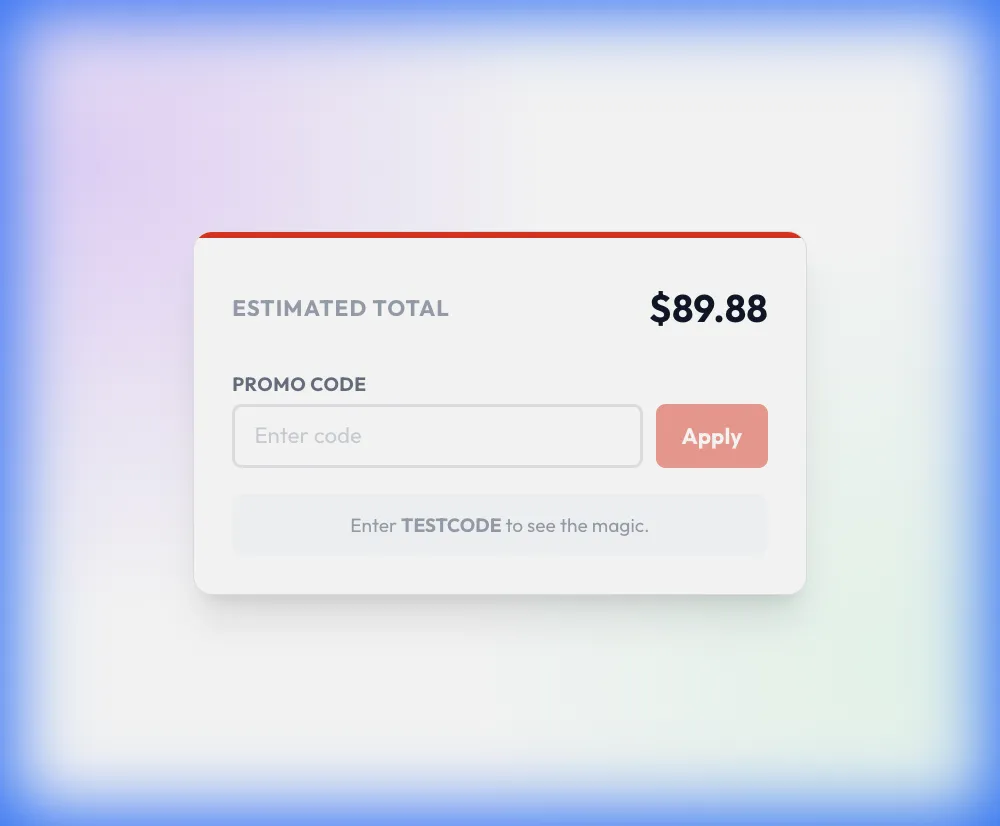
Now head over to BoldSign's site. Pick your Electronic Signatures plan. Checkout page has a "Promo Code" field. Paste what you copied there.
Can I get a refund on a discounted BoldSign subscription?
BoldSign subscription fees are non-refundable under its terms, including fees paid for a discounted subscription. The stated fees also exclude applicable taxes, levies and duties, which remain the buyer's responsibility. Cancellation keeps the paid plan active until the end of the current billing cycle, so access continues for the remaining subscription period. The account administrator can open Settings, Subscription and select Cancel Subscription at the top right. A confirmation dialog asks for a cancellation reason before the administrator presses Cancel Subscription again. BoldSign also allows the subscription to be resumed during the remaining active period. Before committing to a paid term, the 30-day free trial lets you explore BoldSign without supplying a credit card.
How do I cancel BoldSign before a discounted subscription renews?
The BoldSign account administrator can cancel the subscription before renewal while retaining access until the current billing cycle ends. Open Settings and select Subscription to reach the subscription management page. Click Cancel Subscription at the top right, select a reason in the confirmation dialog and press Cancel Subscription to complete the request. Cancellation leaves the current paid period active; BoldSign also allows reactivation during that remaining period. If you decide to continue, select Resume subscription and confirm with the Resume Subscription button in its dialog. The Billing information section shows the billing cycle and next due date, which identify the upcoming renewal. Review that next due date before completing the cancellation request for your discounted subscription.
Which BoldSign plan should I select before applying a subscription offer?
Select your BoldSign plan around its sender and envelope allowances before applying a subscription offer. Essential is free and includes 25 envelopes per month, two templates and no additional users. Growth includes 50 envelopes per month per user and 10 templates, while Business includes unlimited envelopes and unlimited templates. Premium includes unlimited users and 250 envelopes per month, with additional envelopes charged at $0.50 each. Your active plan appears beside Plan in the Overview section of Settings, Subscription. Account owners and users with administrative permissions can also see document usage and user licenses there. When upgrading, additional user licenses increase the payment amount, so review the Additional Licenses field alongside Total due on Payment Details.
Does BoldSign offer a nonprofit discount on paid plans?
Eligible nonprofits receive BoldSign Growth free and a 50% discount on Business and Premium subscriptions. Organizations from any country can apply by providing proof of nonprofit status. The application requires your selected plan, official organization name, website URL and supporting documentation, such as a nonprofit registration letter. Open BoldSign's nonprofit application page, select Apply now and submit the required details with the documentation attached. After approval, BoldSign activates the nonprofit plan and sends a confirmation email with upgrade and account setup instructions. The discount excludes add-ons such as SMS delivery, Bulk Send and bulk links, along with API-specific plans; those remain available at standard rates. Attach your nonprofit proof in PDF, DOC, JPG or PNG format.
Why is my BoldSign promo code not reducing the payment?
A BoldSign coupon applied after subscription activation affects the next billing cycle, so the discount appears under Next Due. An account administrator can reach the subscription details through Settings, Subscription, where Billing information includes the promotional-code option and the next due date. For an upgrade purchase, the discount appears in Payment details after Apply and before Buy now. This places the reduction at a different stage from a coupon added to an already active subscription. The Subscription page also lists invoice amounts and payment status for completed billing. If you are reviewing a previous payment, open its invoice through View invoice; use Next Due to review the forthcoming discounted charge.
Will a BoldSign discount continue when my subscription renews?
BoldSign renews subscriptions for the same billing cycle at the prevailing rate, so review Next Due for your upcoming discounted charge. Recurring payments continue automatically unless you cancel the subscription or the license is terminated. Account administrators can open Settings, Subscription to see Billing information, including the billing cycle, last payment and next due date. A valid coupon added after subscription activation is reflected in the next billing cycle rather than a completed payment. The Invoices section also shows the amount due and payment status for each invoice, helping you distinguish a previous charge from the upcoming renewal. For the amount associated with an applied renewal coupon, read Next Due in the Subscription page.
How does yearly billing reduce BoldSign Growth costs before a promo code?
BoldSign Growth costs $5 per month per user with yearly billing, compared with $15 per month per user on monthly billing. The yearly figure is a monthly equivalent tied to an annual subscription, so it represents $60 per user for twelve months before applicable taxes. Growth includes 50 envelopes per month per user and 10 templates with either billing option. To select the annual term, open Settings, Subscription and the plan selection screen, then select Yearly using the billing toggle. Payment details shows the amount payable before you complete the purchase. When switching an existing yearly subscription to Monthly, BoldSign keeps the yearly plan until the next billing cycle.
Where do I enter a BoldSign promo code when upgrading?
Enter your BoldSign promo code through Apply promo code in the Promo column on the Payment details page. Open Settings, select Subscription and click Upgrade to reach the Change plan page. Select the paid plan you want and click Upgrade plan to open Payment details. On the right side, select Apply promo code, enter your code in the textbox and press Apply. BoldSign applies the subscription discount according to the coupon and displays the adjusted amount before you press Buy now. Payment then activates the selected subscription. If you already have an active plan, the Promo column is under Billing information instead, and Next Due shows the discount for the next billing cycle.
Which BoldSign add-ons can increase my bill beyond a plan discount?
BoldSign charges separately for pay-as-you-go add-ons such as SMS delivery, WhatsApp messages, bulk sending and bulk links. Pay-as-you-go requires an active Business, Premium or Enterprise API subscription and applies to additional usage or add-on features. Bulk Send costs $0.25 per envelope, while WhatsApp delivery costs $0.10 per message. SMS delivery starts at $0.20 per SMS, with pricing varying by the recipient country. These usage charges are separate from the base subscription and receive a separate monthly invoice. In Settings, Subscription, the Pay as you go section lets you enable the relevant features. Set a budget limit on the Subscription page to receive email alerts at 50%, 80% and 100% of that amount.
Does BoldSign accept promo codes as well as coupons?
Yes. A BoldSign coupon and a promo code are the same thing: paste the code in the promo field at checkout before you pay.