Savings opportunities available through Dropbox discount codes
Dropbox sells sync reliability. They charge for the terabytes and history. It just works. Don't rely on the 2GB free tier.
Service categories frequently on promotion
Dropbox Plus and Family. We see the 'Visa Offer' (40% off) as the gold standard for new Plus accounts. Our deals help you get 2TB for ~$7/mo. Validate the eligibility. The Visa offer is strict; you must pay with a Visa card to trigger the discount.
Services usually excluded from promo codes
Enterprise plans use custom quotes. Sign and DocSend add-ons are often full price. Quality costs money. The block-level sync speed is the value; use our code to cut the subscription cost.
Impact of billing cycle on promotional price
Annual Savings. Dropbox offers ~17% off simply for paying yearly ($119.88 vs $9.99/mo). If you find a 25% coupon, it usually requires the annual payment option to work. Stack them.
Promo codes vs. automatically applied offers
Partner Deals. Be careful. Purchases of Dell, HP, or ASUS computers often come with 25GB or 100GB of 'Promotional Space' for free. Check your new device paperwork before buying a plan.
Accessing active codes for Dropbox
Dropbox’s coupon redemption page opens the account sign-in screen. Have your Dropbox account login ready to continue with redemption.
How to use Dropbox Discount Codes?
Copy a Dropbox coupon or promo code, then paste it in the promo field at checkout.
Choose a coupon
Grab the Dropbox offer that works best for you. It's listed above.
Reveal the code
Hit "Get Code" or "Get Deal" depending on the offer type. Popup opens. Click the copy icon inside—code goes to your clipboard.
Apply at checkout
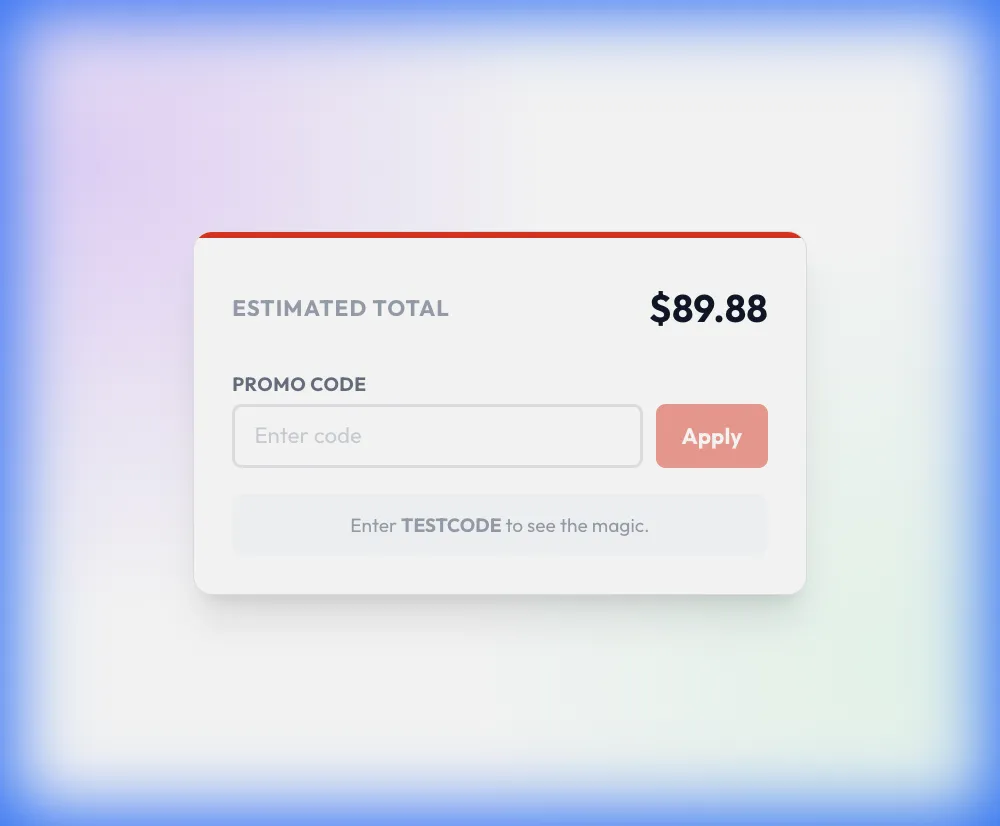
Now head over to Dropbox's site. Pick your Dropbox Plus plan. Checkout page has a "Promo Code" field. Paste what you copied there.
Who handles a refund for a discounted Dropbox app-store purchase?
The device storefront handles refund requests for Dropbox subscriptions purchased through that storefront. Account issues and billing errors involving those purchases go to the storefront that processed the payment. Subscription cancellation also follows the purchase channel, through Google Play for Android or the device settings for an iPhone or iPad. On Android, open the Dropbox app, tap Account, then Manage your subscription and How to cancel. Cancel plan opens the Google Play subscription, where Cancel subscription completes the cancellation. On an iPhone or iPad, open Settings, tap your name, select Subscriptions, then Dropbox. The account downgrades to Basic at the end of the billing cycle. The iOS cancellation button is labeled Cancel Subscription.
Can nonprofit organizations get a Dropbox team discount?
Dropbox offers team subscription discounts for nonprofit organizations and educational institutions. These discounts cover Standard, Business, Advanced, Business Plus and Enterprise team accounts. A team member can ask their account admin about the organization's discount options. The admin can contact Dropbox directly using the contact information in the admin console. Unused storage space or unused licenses do not qualify for a discount. Standard and Advanced are sold for teams of three people or more, so the number of paid users matters when arranging the subscription. Dropbox also provides tax-exemption options for some nonprofit and educational institutions on team plans. A team admin can contact support about tax eligibility through the admin console.
How do I switch a discounted Dropbox subscription to annual billing?
Dropbox individual subscribers can switch their subscription to yearly billing through their account settings. This applies to Plus, Professional, Essentials and Family, with Family billing managed by the Family manager. Open Manage account, then Subscriptions, and select Change beside Billing period. Select the yearly billing cycle and click Confirm; the individual account's billing change takes effect at the end of its current cycle. Team billing follows a separate route through Admin console and Billing. Under Products, an authorized admin selects Switch to yearly beside Billing period, then Save changes. For teams moving from monthly to yearly billing, the yearly cycle begins immediately. The plan comparison page uses the labels Billed monthly and Billed yearly when selecting a purchase term.
Will canceling a discounted Dropbox plan mid-cycle trigger a refund?
Canceling a Dropbox subscription mid-cycle does not automatically trigger a refund. Refunds are issued when required by law, while an individual website subscription changes to Basic at the end of its current monthly or yearly billing cycle. Until that cycle ends, the paid subscription remains in effect, and cancellation prevents another subscription charge. For Plus, Professional or Essentials, open Manage account and select Cancel plan at the bottom of the page. Select a cancellation reason and follow Continue canceling or Confirm change through the remaining prompts. Dropbox sends an email confirmation after cancellation. In the account's Billing tab, selecting Change beside Billing period displays the confirmation titled Plan downgrade scheduled.
Which payment methods can I use for a discounted Dropbox subscription?
Dropbox accepts credit cards and PayPal, with SEPA Direct Debit available for eligible subscriptions. Plus and Professional customers can use SEPA when their billing country is eligible, including Germany, France, Spain and the Netherlands. At purchase, the Direct Debit tab sits under Enter payment details. A team subscription can use SEPA Direct Debit only when the customer lives in Germany. Direct debit authorization takes up to five business days, but the new subscription is available immediately. After a website purchase, individual subscribers can change their payment details through Manage account and Billing. The Update option beside Payment method opens the payment settings, and Save changes completes the update.
Why can't I redeem my Dropbox Plus promotional license key?
Dropbox Plus promotional license keys require an eligible Basic or Plus account without add-ons. An existing Plus account must have 2 TB and use credit card or PayPal billing. In Manage account, the redemption option is Redeem a license key beside License keys. Enter the key, select your country, and select Start using Dropbox Plus. An Apple or Google subscription requires a payment-method change before redemption. The key must also match the country associated with your billing address. After redemption, a former Basic subscriber has a Plus account, while an existing Plus subscriber sees a scheduled license key. For unresolved redemption issues, select Account in Dropbox support, then Get help with other issue, and enter License key issue in the description.
What happens after a chargeback on a discounted Dropbox subscription?
A bank chargeback changes an individual Dropbox subscription to the free Basic plan. For a team subscription, a chargeback places the team in a locked state with most syncing and sharing features removed. A locked team sees a banner or notification on dropbox.com, and the admin must decide how to resume or change the plan. Desktop syncing, file uploads and file sharing are unavailable while the team is locked. Members can contact their admin about buying or renewing the subscription. An eligible admin can resume the paid team plan by entering billing information and completing the purchase. The renewal steps begin with Review options in the red banner, followed by Keep Dropbox for teams.
Does Dropbox provide a money-back guarantee for discounted subscriptions?
Dropbox refunds paid subscriptions when required by law. Residents of the EU, UK and Turkey qualify when they cancel Plus, Family, Professional or Essentials within 14 days of purchase. To cancel an individual subscription bought on the website, open Manage account and select Cancel plan. Select a reason, continue through the cancellation prompts, and contact Dropbox support to request the eligible refund. Cancellation alone schedules a downgrade to Basic at the end of the paid billing cycle. For a purchase made through a device storefront, the refund request goes to that storefront. The purchase receipt is available from the account's Billing area; select Receipt beside the relevant transaction to identify the payment.
Where is my Dropbox discounted purchase receipt for a refund request?
Dropbox purchase receipts are available in your account's billing history. Dropbox provides invoices and receipts for payments, and individual subscriptions have their own billing page. For Plus, Family, Professional or Essentials, open Manage Account, then Billing, and select Receipt beside the transaction. The Invoice option opens the corresponding invoice instead. Only the Family manager can access billing information for a Family subscription. Team receipts are available to authorized admins through Admin console, Billing and Payment history, where the newest transactions appear first. Open the transaction's additional options and select Find receipt, then enter the transaction ID and select Submit. If an individual card transaction is missing, Dropbox's credit or debit card purchase lookup can locate the receipt.
Does Dropbox accept promo codes as well as coupons?
Yes. A Dropbox coupon and a promo code are the same thing: paste the code in the promo field at checkout before you pay.