Skip to content

Glide Promo Codes & Coupons

6 offers listed

Active Glide promo codes

15%OFF

Apply this coupon to get 15% off individual plans at Glide for members only. Unlock savings now during checkout.

Used 10 times

Used

15%OFF

Get 15% off next 12 billing cycles at Glide.

Used 7 times

Used

Get Glide coupons in your inbox

We'll notify you when new verified codes are added.

FREE

Claim a free gift with Glideapps.com Pricing Plans and Upgrade.

Used 5 times

Used

$40

Grab $40 off select Glide plans for a month with this deal.

Used 8 times

Used

FREE

Get a free gift with Glide Pricing Plans and Upgrade Maker.

Used 4 times

Used

50%OFF

Save 50% on Glide Maker Plan for members only.

0%0% SuccessUsed 16 times

Used

About Glide & Latest Deals

Glide provides tools for building business apps from spreadsheets, prompts and files.

Savings opportunities available through Glide promo codes

The offers on this page cut what you pay for Glide, the business operations platform that turns Excel files and Google Sheets into apps and AI agents. GlideOS plans start at $25 per month. Classic plans carry a yearly toggle labelled Save 20%, which is a saving built into the term you pick.

Service categories frequently on promotion

A promotion code goes onto a new subscription, and you choose the plan first. The paid GlideOS plans are Basic at $25 a month, Plus at $50 and Pro at $125, with Enterprise on custom pricing. Promotional credits can be limited to specific services.

Services usually excluded from promo codes

Promotional codes can only be applied to new subscriptions, so an existing plan cannot take one. Promotional credits cannot be combined with other promotions unless the grant or the plan description says otherwise. Extra credits are available on paid plans only, and credits cannot be redeemed for cash.

Impact of billing cycle on promotional price

The term you select decides the renewal term. Renewals repeat the duration originally selected, at the then-current non-promotional rate. Classic pricing shows Monthly and Yearly, and Classic subscriptions are billed in US dollars with applicable VAT added at checkout. GlideOS plans are priced per month.

Promo codes vs. automatically applied offers

A promotion code is typed in. It goes into the Add promotion code link on the subscription page, then you click Apply. The Save 20% label on the Classic yearly toggle works differently: you get it by picking the yearly term, with no code to type.

Accessing active codes for Glide

Sign in at go.glideapps.com, choose the team in the Team dropdown, then open Billing and Manage Plan. Only Team admins have access to billing details, so ask an admin if the Billing page is missing. Have the plan chosen before you apply a code; payment details go on the right side of the page.

How to use a Glide promo code

Copy a Glide promo code or coupon, then paste it in the promo field at checkout.

  1. Choose a coupon

    Grab the Glide offer that works best for you. It's listed above.

  2. Reveal the code

    Hit "Get Code" or "Get Deal" depending on the offer type. Popup opens. Click the copy icon inside—code goes to your clipboard.

  3. Apply at checkout

    Now head over to Glide's site. Pick your GlideOS plan. Checkout page has a "Promo Code" field. Paste what you copied there.
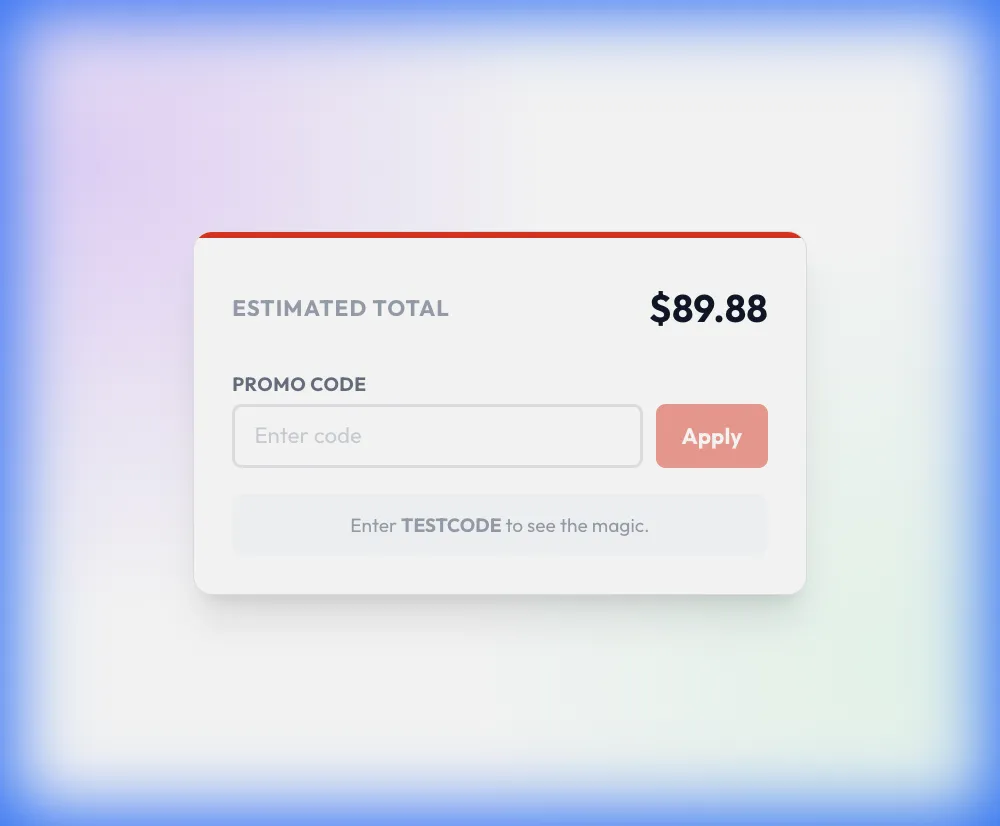
Simulator showing where to paste the promo code at checkout

Glide Promo Code FAQ

Start with the subscription type, because promotional codes can only be applied to new subscriptions. Next, look at who is signed in: only Team admins have access to billing details, so a member without admin rights cannot reach the field. Then check the team in the Team dropdown, since the plan is added to the team you navigate to. If the offer is a promotional credit, its limits apply: it expires as stated in the promotion, or at the end of the then-current billing cycle when no expiration is stated, and it can be limited to specific services. Glide can also revoke or adjust credits granted in error, through abuse, or in violation of the Agreement.

Yes, within 14 days of the initial purchase date. For a team on a plan with a trial or a coupon, the purchase date is the first date you were charged. You must submit the refund request inside that period to qualify. Glide Classic plans are fully refundable under these conditions. On GlideOS the refund is limited to the base subscription fee, not the credits allocated to the plan or any extra credits purchased. For example, on a monthly plan costing $40 with $15 for the base subscription and $25 for 250 credits, only the $15 is refundable within the 14-day window.

Only new subscriptions. Promotional codes can only be applied to new subscriptions, and the code is added while you create the subscription, before the payment details. The plan lands on the team you picked in the Team dropdown, so choose the right team first. Only Team admins have access to billing details, which means the admin is the person who enters the code. Teams that kept a legacy plan face a related catch: when that plan changes for any reason (upgrade, free trial, failed payment, change of plan, etc), the prior plan will be lost and a currently available plan will need to be selected.

No. The Classic pricing FAQ answers the education and nonprofits question with a no: Glide does not currently offer any special discounts for nonprofits. That leaves two routes to a lower bill. The Free plan costs nothing: on GlideOS it includes limited credits, 2 team members and 10 projects, and you can try GlideOS before purchasing by using it. On Classic, the yearly toggle is labelled Save 20%, and the Free plan covers 1 editor, unlimited drafts and up to 25k rows. Neither route needs a code. A promotion code is a separate thing and goes on a new paid subscription.

Yearly, on Classic. The Classic pricing toggle reads Monthly and Yearly, and the yearly side is labelled Save 20%. Business starts at $199 per month billed yearly, and Business also carries a 14-day free try. Applicable VAT is added at checkout, and all Classic subscriptions are billed in US dollars. GlideOS is different: Basic is $25 a month, Plus $50 and Pro $125, with Free at $0 and Enterprise on custom pricing, and every figure is a monthly one. A promotion code is entered after you select the plan, so the term you choose is already set when the code is applied, and renewals repeat that same term.

No, unless the grant or the plan description says otherwise. Promotional credits cannot be combined with other promotions by default, and they can be limited to specific services, so an offer covers only what its grant names. They expire as stated in the applicable promotion, or at the end of the then-current billing cycle if no expiration is stated. Credits are non-transferable and non-assignable and cannot be redeemed for cash or any other value. Where several categories of credits are available, Glide may consume them in any order it determines. Extra credits can be bought on paid plans only, so a free plan has no top-up route for them.

Yes, on Classic Business. Classic Business carries a Try 14 days free label on its pricing card. A free trial or other promotion must be used within the specified time of the trial. Stop using the paid service before the trial ends to avoid being charged for it. If you cancel before the end of the trial period and are charged by mistake, contact support@glideapps.com. A trial also moves the refund clock: the purchase date is the first date you were charged, and a refund request must be submitted within 14 days of it. GlideOS works differently, because its Free plan lets you try the platform before purchasing.

The regular price returns. Paid services renew automatically for successive periods of the same duration as the subscription term originally selected, at the then-current non-promotional rate. A discount on the first payment therefore does not set later charges. When the billing period ends, a renewal invoice is issued and the payment method on file is charged automatically. Paying a late invoice does not shift the billing cycle forward. You can opt out of auto-renewal by contacting support@glideapps.com. If you terminate a paid service, you may use your subscription until the end of your then-current term, with no prorated refund for the rest of that period.

On the subscription page, after you pick a plan. Sign in at go.glideapps.com, use the Team dropdown in the top left corner to choose the team you want to add a plan to, then click Billing in the bottom left corner and Manage Plan. Select your desired plan, then click Add promotion code on the left side of the page. Enter the promotion code and click Apply. Payment details go on the right side of the page, and Subscribe finishes the process. Only Team admins have access to billing details. If you do not see the Billing page, open the Members page and contact one of the team admins.

Cancel on the Billing page before the next renewal. Outstanding invoices must be paid first, because the cancel button does not appear while payments are due. For Classic, open Billing, click Manage Plan or Open Customer Portal, click Cancel subscription, then Cancel plan again on the next page. For GlideOS, select the team name, open Team Settings, then Billing, and choose the Cancel plan option. The plan is canceled at the end of the billing period and will not renew. Any overages incurred during the period are charged at the end of the current billing cycle; unpublish your apps to avoid them.

Yes. Glide uses one promo code field at checkout, so a coupon and a promo code work the same way: paste the code there before you pay.

Scroll up for the current Glide offers.