Verified · Used
Nextend Coupon & Promo Codes
Best verified offer: 10% off · 1 offer · last checked 3 Nov
Active Nextend coupon codes
Expired Offers (May still work)
About Nextend & Latest Deals
Nextend is a WordPress plugin developer behind Smart Slider 3 and Nextend Social Login.
Learn more about Nextend and their latest offers.
How to use Nextend Discount Codes?
Copy a Nextend coupon or promo code, then paste it in the promo field at checkout.
- Choose a coupon
Grab the Nextend offer that works best for you. It's listed above.
- Reveal the code
Hit "Get Code" or "Get Deal" depending on the offer type. Popup opens. Click the copy icon inside—code goes to your clipboard.
- Apply at checkout
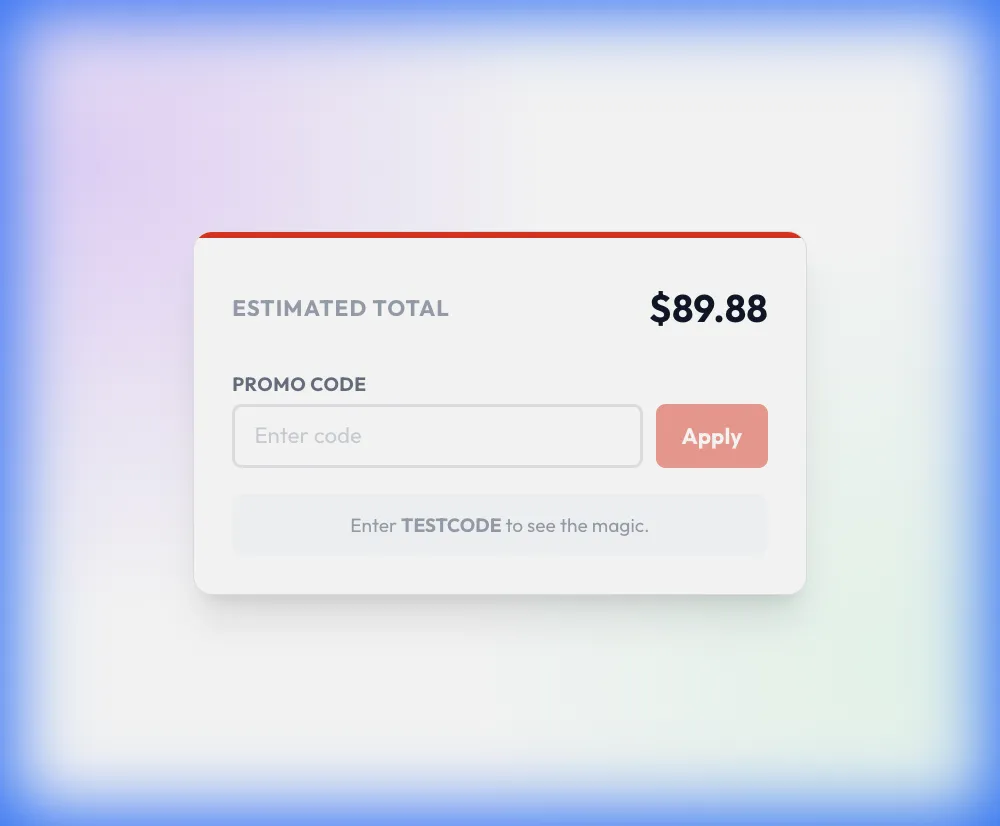
Now head over to Nextend's site. Pick your Smart Slider 3 plan. Checkout page has a "Promo Code" field. Paste what you copied there.
Nextend Discount FAQs
Nextend Smart Slider's Standard and Premium plans use a one-time payment with lifetime updates and support. Lifetime updates continue for as long as the plugin is developed, and premium services apply to the activated domains covered by your license. An existing subscription package remains governed by the offer accepted when it was purchased; a newer pricing table does not change that agreement. The Nextend account area displays purchase history and any subscriptions associated with your packages. Its package information bubble shows details such as the update and support period, and a subscription can be cancelled with the package's Cancel button. For an older offer purchase, read that package information before treating it as a one-time license.
Submit the refund form linked from Nextend Social Login's pricing FAQ within 14 days of your purchase. The money-back guarantee provides a full refund if the plugin does not meet your expectations during that period, without requiring an explanation. The refund ends your license and deactivates the associated package, so access to the premium services ends with it. Nextend's general terms also allow a full refund or exchange within 14 days of the original purchase date. Your account provides the purchased package and a View Invoice option for downloading its invoice. For the request itself, follow the refund form link under the pricing page's refund-policy question within the stated purchase window.
Install and authorize the Nextend Social Login Pro Addon alongside the free plugin after completing your purchase. Both plugins must be installed before authorization, and the Pro Addon is available from your Nextend download area. In the Nextend Social Login plugin, open the Pro Addon tab and select Authorize. The popup lets you select your purchased package; after authorization, the Install Pro Addon button starts installation and enables the addon. Your settings from the free version carry over, while the addon adds access to its extra providers and integrations. The free plugin remains part of this setup, so leave it installed when adding the purchased Pro Addon.
Nextend Smart Slider activation requires the Pro installation, the account associated with your purchase and an available domain license. Open the Dashboard's Info Popup to confirm whether Free or Pro is installed; the free version must be replaced with Pro before activation. Then select Activate in the Dashboard activation box, sign in through the popup and activate your purchased package. If the popup shows no packages, the account email must match the one connected to the order. A package whose domain allowance is already used cannot activate an additional domain. When the package is missing from the correct account, use the Contact us link inside the activation popup to request help.
Nextend's 14-day refund window starts from the original purchase date. Its terms allow a request for a full refund or exchange within that period, so the purchase date determines the deadline. FastSpring acts as the reseller and processes payments for Nextend products, including payments made by credit card or PayPal. For Nextend Social Login, the refund request goes through the form linked from its pricing FAQ. A completed refund terminates the license and deactivates the associated package, ending access to premium services. The package's View Invoice option provides access to the invoice in your Nextend account. Retrieve that purchase record when preparing a request within the 14-day window.
Yes, Nextend Social Login offers a free plugin for your own website and a hosted demo showing its Pro WooCommerce integration. The free plugin provides Facebook, Google and X login options, while the Pro Addon adds other providers and form integrations. To install the free plugin, search for Nextend Social Login in WordPress under Plugins > Add New, then select Install Now and activate it. Open Settings > Nextend Social Connect to configure a provider, test its configuration and enable it. The hosted frontend demo lets you examine the WooCommerce integration before purchasing the addon. Try that demo when your discounted purchase is intended specifically for social login in a WooCommerce shop.
Nextend Social Login paid packages include lifetime updates and support for the latest Pro Addon version on activated domains. Premium adds priority support, meaning its account questions are answered before questions from accounts without that priority. Nextend also provides documentation covering plugin settings, provider configuration and form integrations, plus tutorial videos. Its general terms exclude guaranteed fixes for server compatibility, other plugins, custom themes and requested new features; help with third-party conflicts is provided at Nextend's discretion. The Pro Addon must be authorized against your purchased package to use it on the licensed domain. For provider setup after an offer purchase, open that provider's documentation and complete its configuration before enabling the login option.
A single-domain Nextend Smart Slider license covers multisite installations whose subsites share the same domain through subdomains or subdirectories. Separate domain names count separately, so a single-domain package cannot cover a network spread across different domains. Smart Slider must be activated on the main site and on each individual site where you use it, because multisite updates run from the main site. After installing Pro, open its Dashboard, find the activation box and select Activate. The popup asks for your account credentials, then lets you activate your purchased package. Before selecting among the offers on this page, count separate domain names rather than individual WordPress installations.
Select Buy Standard or Buy Premium on Nextend Social Login's pricing page to open the FastSpring checkout popup. Standard is the one-website option, while Premium offers a choice of three, five or ten websites. The selected package is added to checkout, where FastSpring handles payment for Nextend's products. Credit cards and PayPal are accepted, and the payment provider calculates tax according to your country. An EU company can enter its EU VAT number during checkout for zero tax. After successful payment, Nextend sends an email containing the download link for the purchased plan. For a Premium purchase, select the required website count before opening checkout so the order contains the intended package.
Nextend Social Login Standard covers one website, while Premium provides three, five or ten website licenses, depending on the package purchased. Licenses are linked to the domains where the Pro Addon is activated, and each package permits its stated number of domain activations. To authorize an installation, open the plugin's Pro Addon tab, select Authorize and select your purchased package in the popup. A license can move to another domain after the previous domain is deactivated in your account. Standard allows one deactivation per year; Premium permits two, three or five for its respective website counts. Select enough domain licenses before purchasing an offer, because adding more licenses later requires another Standard or Premium purchase.
Yes. A Nextend coupon and a promo code are the same thing: paste the code in the promo field at checkout before you pay.


