Used
WooCommerce Coupon & Promo Codes
No active WooCommerce codes right now. The most recent ones are below.
Expired Offers (May still work)
Used
Used
10%OFF
Save 10% off the annual plan at WooCommerce.com with this special offer, valid on select items only.
Used
About WooCommerce & Latest Deals
Professional Woocommerce platform and services.
Savings opportunities available through Woocommerce promo codes
WooCommerce sells extensibility. They charge for the official plugins. It turns a free blog into a million-dollar store. Don't build with unverified nulled plugins.
Service categories frequently on promotion
Official Extensions (Subscriptions, Bookings, Memberships). We see WooCommerce.com rarely issues text codes. Discounts usually come in 'Bundles' or via hosting partners who give you $100s in free extensions. Our deals help you scale. Validate the source. Deals for 'WooCommerce' often mean 'Plugins *for* WooCommerce' sold by third parties (like YITH or Tyche). Know if you are buying official or 3rd party.
Impact of billing cycle on promotional price
Annual Subscription. All official WooCommerce extensions are billed annually. There is no monthly option. promo codes apply to that first year's $199 fee. Renewal is full price.
Promo codes vs. automatically applied offers
Hosting Bundles. Be careful. The best 'WooCommerce Coupon' is often a hosting plan (e.g., Bluehost or SiteGround) that *includes* free premium extensions. Check if your host gives you the plugin you were about to buy for free.
How to use WooCommerce Discount Codes?
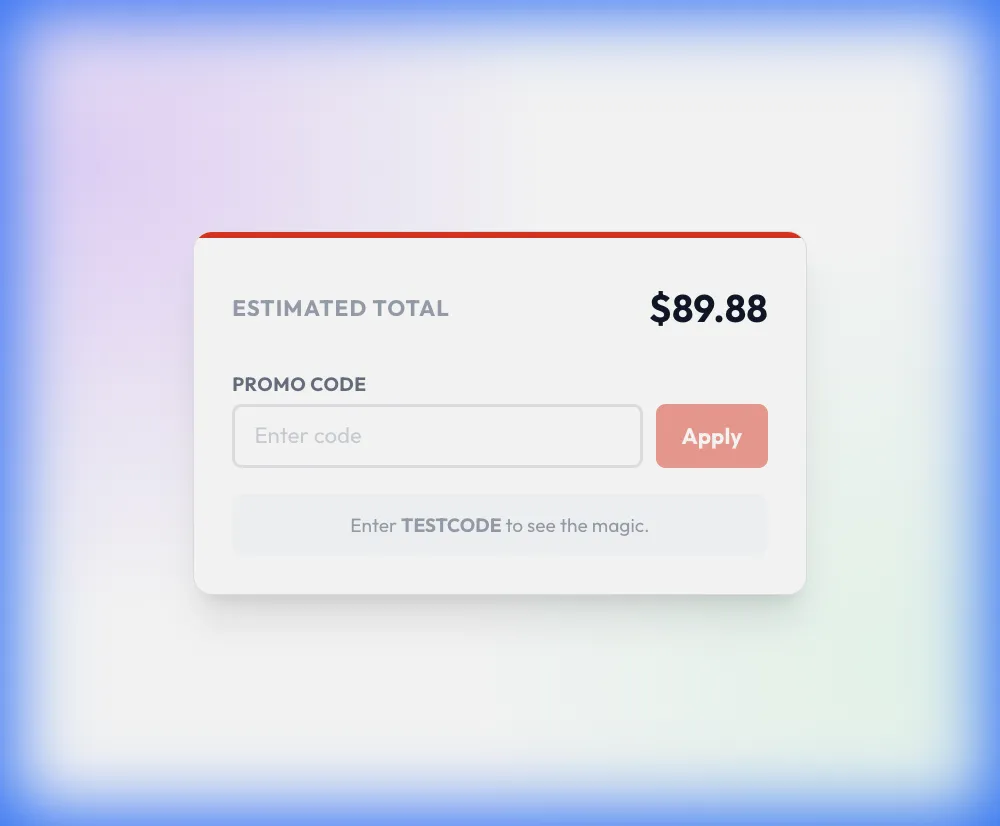
Copy a WooCommerce coupon or promo code, then paste it in the promo field at checkout.
- Choose a coupon
Grab the WooCommerce offer that works best for you. It's listed above.
- Reveal the code
Hit "Get Code" or "Get Deal" depending on the offer type. Popup opens. Click the copy icon inside—code goes to your clipboard.
- Apply at checkout
Now head over to WooCommerce's site. Pick your WooCommerce plan. Checkout page has a "Promo Code" field. Paste what you copied there.
WooCommerce Discount FAQs
Can I request a WooCommerce refund after forgetting a coupon?
WooCommerce offers a full refund for Marketplace extensions and themes within 30 days of purchase. That gives you a refund route for an eligible purchase made without applying an offer. In your WooCommerce.com account, open Orders and select the order number for the extension or theme. The item's three-dot menu in the Actions column contains Request a refund, which opens the refund form. Select a reason, explain your request, and submit it with the Request refund button. WooCommerce sends confirmation to the email address associated with your account, and your financial institution can take up to 10 business days to display the refund. The refund option appears in the item's menu only during the 30-day window.
Which WooCommerce subscription term offers an extension discount?
Select WooCommerce extensions offer a 20% discount with a two-year subscription. The longer term lowers the annual cost compared with the one-year option for those extensions. Each extension's product page displays the subscription durations available, so the two-year option depends on the product you are buying. Select the available term before proceeding from the product page to checkout using Buy Now. If you already hold a one-year subscription, WooCommerce's documented route to the lower annual cost is to disable automatic renewal and purchase a new two-year subscription when the current term ends. Subscription renewals themselves are charged at the current price for the selected term without promotional discounts. Manage the existing subscription's automatic renewal through My Subscriptions before its term ends.
Can existing WooCommerce customers apply a coupon to a new extension purchase?
WooCommerce coupons apply to new purchases rather than subscription renewals. An existing account can purchase another product through the same WooCommerce.com checkout used for new accounts. Start from the extension's product page and select Buy Now to reach checkout. Sign into the account that should own the subscription so the purchase uses that account's saved information. WooCommerce extension purchases provide a subscription for product updates and support, with annual or biennial billing depending on the extension's available options. The distinction is between a new purchase and a renewal order, rather than simply having an existing account. Renewal payments use the current price for the selected term without promotional discounts. The extension's product page lists its available subscription durations before checkout.
Which currencies can I use for a discounted WooCommerce purchase?
WooCommerce accepts US dollars, Australian dollars, Canadian dollars, euros, and British pounds. You can set your default currency in your WooCommerce.com profile before purchasing an extension. The product's Buy Now button takes you to checkout, where an existing account can use its saved information. If your bank account uses another currency, your bank or card issuer converts the purchase into that local currency. WooCommerce also lets you update the currency used for future renewals of existing subscriptions. Those renewals are billed at the current subscription price, with coupons and other promotional discounts excluded. When changing your account currency, selecting Renew existing subscriptions in default currency makes subsequent renewals use the updated currency automatically.
Is a WooCommerce extension trial available before a discounted purchase?
Selected WooCommerce Marketplace extensions have a 30-day trial on a personal demo site. Eligible extensions include WooCommerce Bookings, WooCommerce Subscriptions, and WooCommerce Memberships. On the extension's product page, select View demo near the top-right, then Create my test site in the popup. Connecting a WordPress.com account opens a demo store with WooCommerce and the selected extension already installed and activated. You need no domain name, hosting plan, or existing store for this demo. The demo is automatically deleted when the 30-day trial ends, and trial extensions do not include help from Woo's Happiness team. Buying an extension for your own site includes support and the Marketplace's 30-day money-back guarantee. The demo dashboard displays the number of trial days remaining.
Does a discounted WooCommerce extension subscription cover both a live store and a staging site?
One active WooCommerce extension subscription covers one live site and one staging, test, or development site. New purchases are single-site subscriptions, with the additional development activation allowing both environments to use the extension simultaneously. After buying the extension, connect your store to WooCommerce.com to activate its subscription and receive updates and support. WooCommerce counts sites by activation URL, so subdomains and subdirectory installations count as separate sites. The HTTP and HTTPS versions of an address can also count as different activations or be classified as live and development environments. An active subscription is required for product updates and support throughout the purchased term. One live store paired with one development store uses one subscription key, which is the documented setup for testing alongside your live shop.
Does canceling a discounted WooCommerce subscription remove the installed extension?
Canceling a WooCommerce extension subscription does not automatically uninstall the extension. Turning off automatic renewal leaves the subscription active until its expiration date, with no automatic charge on the renewal date. In your WooCommerce.com account, go to My Subscriptions and locate the extension you bought. Open the three-dot menu on the right and select Cancel subscription to stop automatic renewal. After the subscription expires, the installed extension remains on your site, but access to updates and support ends. That includes new security patches and compatibility updates for the extension. Cancellation and a refund request are separate actions, with eligible Marketplace refunds handled through Orders within 30 days of purchase. Automatic renewal can be re-enabled in My Subscriptions before the subscription expires.
Why is my WooCommerce coupon rejected on a renewal order?
WooCommerce coupons cannot be applied to subscription renewals. Coupons apply only to new purchases, while annual and biennial renewals bill at the current price for the selected subscription term. In My Subscriptions, renewal information identifies the subscription and its upcoming renewal. With automatic renewal enabled, WooCommerce charges the payment method on file on the due date and sends confirmation. With automatic renewal disabled, it creates an order that lets you renew manually; that order is still a renewal purchase. Renewing restores or continues access to extension updates and support, rather than starting a coupon-eligible new purchase. For subscriptions with automatic renewal enabled, WooCommerce sends reminder emails 30 days and one day before renewal, giving you the renewal details before the charge.
How do I claim the WooCommerce money-back guarantee on a discounted extension?
WooCommerce's Marketplace refund policy covers extensions and themes for 30 days from purchase. The policy offers a full refund within that window, so the deadline starts with your purchase rather than installation. To submit the request, go to Orders in your WooCommerce.com account and open the relevant order number. Find the extension in the Actions column, open its three-dot menu, and select Request a refund. The form asks you to select a refund reason and add an explanation before pressing Request refund. An email confirms receipt of your request, and WooCommerce contacts you if review is needed. Products using the Billing API for SaaS Products follow the respective provider's refund policy. For a Marketplace extension, the request option disappears after 30 days.
What happens to my discounted WooCommerce extension price at renewal?
WooCommerce extension subscriptions renew at the current price for your selected term without promotional discounts. Annual and biennial subscriptions are charged at 100% of that term's current price, so an initial coupon discount does not carry forward. New purchases have automatic renewal enabled by default, and the payment method on file is charged when renewal is due. Your WooCommerce.com account's My Subscriptions area contains the renewal information and controls for the subscription. Renewing continues your access to product updates and support; allowing the subscription to expire ends those benefits. If you turn off automatic renewal, WooCommerce creates a renewal order for manual payment instead. For an automatically renewing subscription, reminder emails arrive 30 days and one day before the renewal date.
Does WooCommerce accept promo codes as well as coupons?
Yes. A WooCommerce coupon and a promo code are the same thing: paste the code in the promo field at checkout before you pay.


