Used
Datafeedr Coupon & Promo Codes
No active Datafeedr codes right now. The most recent ones are below.
Expired Offers (May still work)
About Datafeedr & Latest Deals
Professional Datafeedr platform and services.
Savings opportunities available through Datafeedr discount codes
Datafeedr sells automation. They charge for the API and plugin ($49+). It fills your WooCommerce store with affiliate products. Don't build product pages manually.
Service categories frequently on promotion
Starter and Basic Plans. We see the 20% discount applying to the monthly subscription fee. Our deals help you get the '100 products per request' limit increased by upgrading to Basic with the savings. Validate the integration. This is for WordPress/WooCommerce only; ensure you have the platform ready before buying into the subscription.
Services usually excluded from promo codes
Professional API access is high-tier and often excluded from basic coupons. Developer licenses are full price. Quality costs money. The automatic syncing is the value; use our code to cut the monthly overhead.
Impact of billing cycle on promotional price
Recurring Lifetime. The best codes here are *lifetime recurring*. A 15% off code that works every month is far valuable than a 50% one-time code.
Promo codes vs. automatically applied offers
Direct Deals. Be careful. The 'Starter Plan' at $49 is often a direct deal with no code needed. Don't stare at the checkout field if the price is already discounted on the landing page.
How to use Datafeedr Discount Codes?
Copy a Datafeedr coupon or promo code, then paste it in the promo field at checkout.
- Choose a coupon
Grab the Datafeedr offer that works best for you. It's listed above.
- Reveal the code
Hit "Get Code" or "Get Deal" depending on the offer type. Popup opens. Click the copy icon inside—code goes to your clipboard.
- Apply at checkout
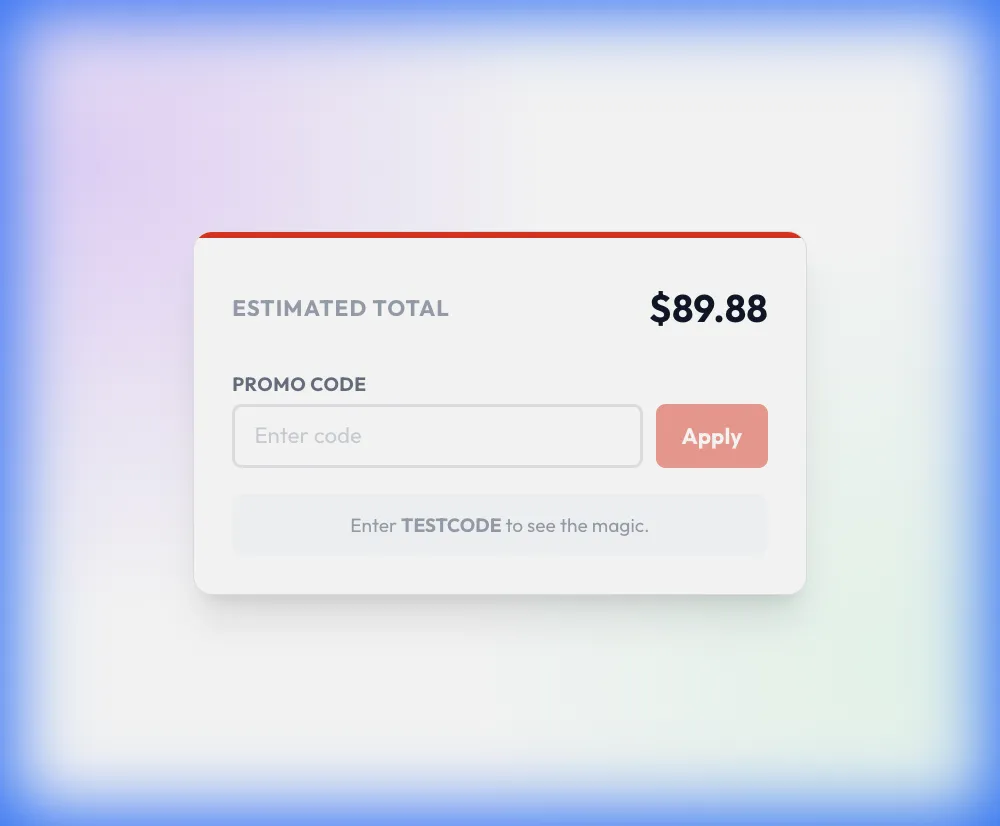
Now head over to Datafeedr's site. Pick your WooCommerce Importer plan. Checkout page has a "Promo Code" field. Paste what you copied there.
Datafeedr Discount FAQs
When does a downgrade take effect on a Datafeedr plan bought with a coupon?
A Datafeedr downgrade takes effect at the end of your current billing period. Your existing subscription level remains active until that point, so the request does not immediately reduce your plan's allowance. To arrange the change, sign into the Member's Area, open Subscription, select the new plan and confirm your selection. The monthly plans have the same features and differ in the number of API requests available. Basic includes 40,000 requests per month, while Starter includes 10,000; both support unlimited websites, WooCommerce importing and price comparison sets. Requests from all connected websites count against the subscription's overall allowance. The concrete timing difference matters when changing plans: downgrades wait until the billing period ends, while upgrades renew immediately.
Can I upgrade a Datafeedr subscription bought with an offer?
You can upgrade a Datafeedr subscription at any time. An upgrade renews the subscription immediately and creates an immediate prorated charge based on the price difference between plans. In the Member's Area, open Subscription, select the new plan and confirm your selection. The plans have the same features, so the change increases the API request allowance rather than adding a different plugin package. Starter provides 10,000 monthly requests, Basic provides 40,000, and Pro provides 150,000. All websites using your API keys draw from that overall allowance. Datafeedr also accepts requests for a prorated refund on the previous subscription under its upgrade refund policy. That separate refund must be requested within 30 days of the upgrade.
Where do I begin a Datafeedr subscription purchase with an offer?
Start with a Datafeedr subscription plan and an account registration. The available plans share the same features, with different monthly API request allowances. The Subscribe button beneath a plan leads to registration, where you enter your name, email address, password and password confirmation. Registration also includes agreement to the Terms of Service and Privacy Policy, plus an optional email subscription for updates, news and offers. Starter includes 10,000 API requests per month, Basic includes 40,000, and Pro includes 150,000. Those allowances cover requests across all websites using your API keys, rather than a separate allowance for each website. For a first subscription, Datafeedr recommends Starter and allows an upgrade when more requests are needed.
How do I stop a discounted Datafeedr subscription from renewing?
Cancel your Datafeedr subscription to stop its next renewal. You can cancel at any time, and access continues through the end of the current billing period. In the Member's Area, click your name in the upper right corner, open Subscription, click Cancel and confirm the cancellation. When that billing period ends, the subscription expires and you are not invoiced again. The subscription can also be reactivated before it expires. Cancellation does not issue a refund automatically; the first month's money-back guarantee requires a separate request within the first 30 days of an active API account. A refund ends membership immediately rather than preserving access for the remaining paid period. The account step that stops renewal is confirming the cancellation after clicking Cancel.
Does Datafeedr offer a free trial before I buy a discounted subscription?
Datafeedr offers a money-back guarantee rather than a free trial. Its WordPress plugins are available to download free, while the subscription supplies a monthly API request allowance and email support. The paid plans include WooCommerce importing and price comparison sets, with the same features across the subscription levels. After opening an active API account, you have the first 30 days to request your first month's subscription payment back if the service or software does not meet your expectations. That requires contacting Datafeedr; cancelling the subscription alone does not issue a refund. A refund ends membership immediately, whereas cancellation leaves access until the paid period expires. The guarantee covers one refund per product and excludes the Installation Service.
Can I add a VAT number after a discounted Datafeedr purchase?
You can add a valid VAT number to your Datafeedr subscription invoice. Datafeedr uses Paddle for payment processing and lets you edit account information through the invoice. Open Billing in your Datafeedr account, find the invoices at the bottom of the page and press Download Receipt on the latest invoice. On the receipt, select Add address & VAT Number, then select this is a business purchase to enter the VAT number. A valid VAT number is applied to future payments, and VAT already paid is refunded after a few days. This process updates the invoice information for your subscription purchase. Finish by pressing Save after entering your business details and VAT number.
Does Datafeedr accept promo codes as well as coupons?
Yes. A Datafeedr coupon and a promo code are the same thing: paste the code in the promo field at checkout before you pay.


